
How to make sure the colors are accurate
Color accuracy is not always easy, there are a lot of factors which can affect the colors. This guide will help you get the perfect color.
This guide applies to you if:
You create your own designs
You have some knowledge of Photoshop
Make sure your screen shows the correct colors
It always starts with your monitor. It doesn’t matter how perfect your color settings are, if the representation on your screen is off. To make the colors match accurately, it’s essential to create a profile for your monitor. You’ll need a profiling device for this. We’ve had good experiences with the Spyder from Datacolor (we’re not sponsored), but there are many other devices available that can achieve the same result.
It’s not always a matter of price
Cheap monitors often have low color accuracy. While you can spend a lot of money to get perfect color representation, there are solid options for smaller budgets too. We’ve tested both high-end and affordable monitors and achieved impressive results with some of our cheaper IPS models. You don’t always need the most expensive gear.
There are plenty of online guides that highlight the best monitors for color accuracy. We won’t recommend a specific display, as the market changes quickly and this article would need constant updates.
Make sure there is no direct sunlight in your screen as this can affect the colors. Also a bright sunny day results in different colors then a cloudy gray sky. Keep this in mind when creating your design.
Use the right settings in Photoshop
When your screen is correctly profiled, it’s time to start designing. Create a new Photoshop file and select AdobeRGB as the color space. Avoid using the default sRGB, as it has a smaller color gamut and can represent fewer colors.
Let Photoshop convert your colors
You want to make sure that if you place a file in your document, it’s converted to the right color space. This is a setting in Photoshop.
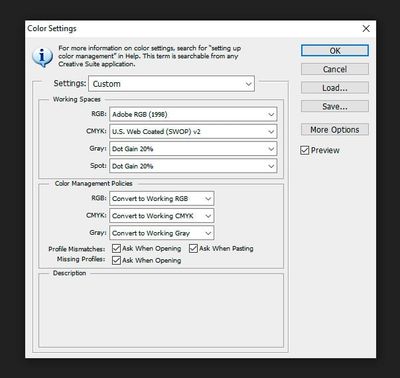
Navigate to Edit > Color settings
Select AdobeRGB as your default RGB color space
At Color Management Policies select Convert to Working RGB
Check all the check boxes for mismatches
Photoshop will now ask you to convert the color when you’re pasting or placing an image.
Save the image and place your order
When you’re ready making your design, save the design as PNG and make sure to select:
- Compression: None / fast
- Interlacing: None
You are now ready to place your order!